Showing posts with label Android. Show all posts

Thursday, August 15, 2013

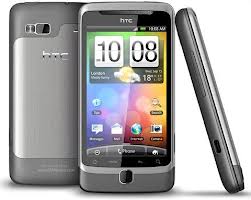
How To Update HTC G2 To Android 4.2.2 Jelly Bean CM10.1 AOSP ROM

This tutorial we  guide you through how to update your HTC G2 to Android 4.2.2 Jelly Bean CM10.1 Custom ROM. Thanks to a developer on XDA who has ported the AOSP version of Android 4.2.2 Jelly Bean on this Android phone. But before the tutorial I should let you know some warnings and pre-requisites.

Disclaimer – All the tools, mods, firmwares or ROMs etc. Mentioned below belong to their respective developers or owners. In any case while following the tutorial you do something wrong, miss a step or whatsoever, Shelaf are not  liable or responsible for any damage or brick of your device in any case. We are not forcing you to attempt this tutorial, its all your wish.

Pre-requisites
  1. You need to installed latest HTC G2 USB Drivers on your PC.
  2. You need to enable USB Debugging Mode which is deactivated by default.
  3. You Smartphone should have 70-80% charged remaining.
  4. Your HTC G2 should be rooted.
  5. Backup your important data like Call logs, SMS and other data in stored in phone memory so in case if anything goes wrong, your data are not hurt.
How to Update HTC G2 to Android 4.2.2 CM10.1 AOSP ROM
  1. Download Android 4.2.2 Jelly Bean CM10.1 AOSP ROM for HTC G2 and Google Apps on your computer.
  2. Connect your HTC G2 to your PC and copy the downloaded files (aosp4.2.2.zip and gapps4.2.zip) to SD card.
  3. Turn OFF your phone and disconnect the device by unplugging the USB cable.
  4. Now you will need to get your phone in ClockworkMod. For that turn ON the phone while pressing Volume Down + Home buttons.
  5. In CWM recovery, you will need to perform full data wipe first, select again wipe cache and then scroll down to Install zip from sdcard. Select power button to select it.
  6. Again press the power button and select choose Install zip from sdcard.
  7. Using volume keys navigate to ‘aosp 4.2.2 ROM’ zip file and select it by pressing the power button.
  8. Installation will begin on the next screen, confirm it.
  9. Repeat the same for Google Apps package.
  10. When the installation is completed, go to +++++Go Back and then reboot your phone from recovery Menu.
That is it. Now you have successfully updated your HTC G2 to CM10.1 Android 4.2.2 Custom ROM!

Find this post helpful drop your comment and remember to click Share/Like buttons for the benefits of others.
If you enjoyed this post and wish to be informed whenever the new posts published, then make sure you Subscribe to our regular Email Updates!

Download Latest HTC Sync Manager For Your HTC Android Device

HTC Sync™ Manager is a necessary software when you use a USB data cable as the link between the PC and your HTC devices. It enables your computer to recognize your HTC mobile or Tablet.
HTC Sync Manager is a free tool to synchronize your media files between your HTC phone (for example Android) and your desktop computer. Other than media files (photos, music and videos) you can also transfer your contacts and calendar entries between your Smartphone and PC. HTC Sync includes a photo management tool to organize and edit, for example crop and rotate, your pictures. The music player allows importing playlists from iTunes and Windows Media Player, as well as creating your own playlists that can be synced with your phone. Once setup, browser bookmarks, contacts and calendar synchronize automatically every time your phone and computer are connected. Finally, the data on your PC synced with HTC Sync serves as a backup should you lose your phone.

Latest HTC Sync™ 3.3.21 Driver


Installation Instructions
  1. Run “ htc_sync_setup_3.3.21.exe” to install it to your PC, and follow the Install Shield Wizard to finish the installation. (Suggestion: Please close all running programs and temporarily exit your anti-virus program when you install the HTC Sync)
  2. Select the “Complete” Setup Type for faster and easier installation process, and then press “Install” to begin the installation. (For advanced users you could choose “Custom” to change the pre-defined shortcuts and the installed application folder path by your own.)
  3. After you saw the Install Shield Wizard Completed, please press “Finish” to exit the Wizard.
Start To Use HTC Sync
  1. Use the USB cable to connect your phone to the PC
  2. When your phone prompts you to choose a type of USB connection, tap HTC Sync, and then tap Done.
  3. Wait for HTC Sync to recognize your phone. On the Device setup screen, enter a name for your phone.
  4. Click Save. The Device panel then opens. On the Device panel, you can set your sync options, see your phone's general information, check the used and available space on your storage card, and begin synchronization
Find this post helpful drop your comment and remember to click Share/Like buttons for the benefits of others.
If you enjoyed this post and wish to be informed whenever a new post is published, then make sure you Subscribe to our regular Email Updates!

Friday, August 9, 2013

How To Run Java Apps And Games On Your Android Device With Java Emulator

Android OS has taken a full control over other OS Whether it is Java or Windows but still we miss some of the Cool Java Apps and Games that we used to Play in our Old Nokia Symbian or Samsung Bada Handsets. Today I am going to share How to Play Java games on Android Phones using Java Emulator For Android Devices.
Emulators are the most versatile and popular tools that allows us to play apps of kind of system to another different system.We have already discussed about Bluestacks Android Emulator that allow users to run almost all Android Apps or Games on Laptop/Desktop without any problem. Java Emulator for Android works by allowing us to Play Java Apps on our Android Mobile Phone.
Generally there is no direct support provided in Android OS to Run Java Apps or games but still we can play them using Java Emulators.
How to Instal Java Games provides a totally different addictive game play that cannot be achieved in even some of the best Android Games so if you are missing your favorite java apps on your new Android Smartphone then just read this post to learn How to Install Java Apps on Your Android Device.
There is app known as JBED java emulator for Android developed by one of the developers from XDA-developers that lets you run almost all java apps on Android OS.

About JBED Java Emulator for Android :
JBED Java Emulator is an Android .apk Application developed by one of the developers from XDA-developers designed to run .jar, .jad apps or games on Android Devices. Get Access to more than 30,000 Different Java Apps by Installing JBED on your Smartphone or Tablet.JBED Java Emulator is tested on HTC Wildfire and it worked fine and Hopefully it works for Your Android Devices too.

Disclaimer :

We are not responsible for Any damage or harm that comes to Your Android Device after using the below given instructions. It is intended to be shared for Information Purpose Only. TRY AT YOUR OWN RISK.

Method 1 : Normal Installation
  • Download the JBED.apk File – Download Link 
  • Install it normally similar to other app installation. 
  • Run the App and Click “SD card” from Menu. 
  • From SD Card Select the .jar or .jad app that you wish to Install. 
  • That’s all and Now You can Run the Installed Java App from apps list.
Note: If the Above Method doesn’t works and asks for force closes then don’t worry just try the below Installation method by Installing JBED by booting into Recovery Mode.

Method 2 : CWM Recovery Mode
  • Download the JBED.zip File – Download Link 
  • Move the Downloaded JBED.zip file into SD Card. 
  • Boot Your Device into CWM Recovery. 
  • There Select Install Zip from SD Card. 
  • Here choose JBED.zip and Install it. 
  • Reboot Your Device and You are all done. 
  • Run the App and Click “SD card” from Menu. 
  • From SD Card Select the .jar or .jad app that you wish to Install.
Method 3 : Manual Installation 
  • Download the JBED Manual Installation File – Download Link 
  • Extract the JBED.zip Contents and Copy them to Your SD Card. 
  • Now Install com.esmertec.android.jbed.apk File from SD Card.
  • Next You need to move the file libjbedvm.so to the path /system/lib/
Note: You can Use Root Enabled File-Explorer i.e Root Explorer or ES File Manager to Move the File 
  • Restart Your Android Device and You are done. 
  • Run the App and Click “SD card” from Menu. 
  • From SD Card Select the .jar or .jad app that you wish to Install.
Conclusion: As said above this Java Emulator For Android is tested on HTC Wildfire or you can say Android OS 1.5 to 2.3.5 and it worked fine. We can’t guarantee that it will work for you because each device and its specifications is different but still you can try the above steps and if you face any problem please let me know. 

Hope this information helps?
If it works for you, don't forget to Comment Here and remember to hit Share/Like buttons for the benefit of others.

If you enjoyed this post and wish to be informed whenever a new post is published, then make sure you Subscribe to our regular Email Updates!

Thursday, August 1, 2013

Simple Method to Root Tecno Phantom A1 (or F7)

Tecno Phantom A1 also known as Tecno F7  is indeed an awesome Smartphone and currently one of the cheapest smartphone in the Nigerian mobile market compared to other smartphones of same specification. So many people are currently buying this phone and today I want to share with you how to root Tecno F7 so as to gain root user access to your device. You can customize your Smartphone as you like once you can gain a root access on it using the method I am going to share with you now.

Steps to Root Tecno Phantom A1 or F7

  1. Download and install the compactible version of PDA.net for your PC OS here.
  2. Download ERoot from here or here
  3. Connect your phone to your PC
  4. Enable USB debugging on your Android phone in Settings > Applications > Development.
  5. Install the PDA.net you downloaded earlier on your PC.
  6. During the installation you'll be prompted to select your cell phone manufacturer and also connect your device via USB.
  7. Click on Ok and allow to install
  8. Extract and run the ERoot downloaded. Ignore the Chinese Language displayed.
  9. A root button would appear. If it doesn't, close the pda.net running from your system tray.
  10. Click on the root button and your phone would be rooted in 10 seconds.
  11. Disconnect your phone from your pc or laptop.
  12. Goto your menu and you will find superuser installed.
  13. Reboot your Tecno Phantom A1 or F7.
  14. Congratulations your phone is now rooted.

Disclaimer: I will not be held liable if the above procedure affects your phone in any way but i will like you to be assured that the above procedures works and you should give it a try. If this tutorial is any way helpful to you please leave a comment to motivate others And remember to share it.
Thanks. 

If you enjoyed this post and wish to be informed whenever a new post is published, then make sure you Subscribe to our regular Email Updates!

Wednesday, July 31, 2013

Browse Unlimited Wtih Blackberry Plan On Your Android/Tablet Using GAE Proxy (Alternative To Droid VPN)

For those people that are still complaining about DroidVPN, here is another means to browse with Mtn Blackberry Subscriptions on your Android Mobile Phone with GAE Proxy Software & tablet users also include.

GAE Proxy is similar to DroidVPN, but a little bit different from DroidVPN. As it allows you to have access to free 10GB! unlimited browsing daily while DroidVPN allow you just 100MB daily. Please remember that this is not your ISP (Internet Service provider) so, you must have an active Blackberry Planbefore it will work for you. It works in all countries whose network is not buffeted and infected.
 
How To Use GAE Proxy To Browse With Blackberry Plan
  1. Visit Google play and search for GAE Proxy or download it here
  2. Run and install it on your Android/Tablet device
  3. Check Connect at boot
  4.   Enable Proxy Switch
  5. Make sure your Bis plan is active and well configured with the correct apn blackberry.net (If you are in Mozambique using Vodacom Network, your apn should be “internet”. Username and Password should be left empty).
  6. Connect and surf! till you are tired
If you enjoyed this post and wish to be informed whenever a new post is published, then make sure you Subscribe to our regular Email Updates

Friday, July 26, 2013

How To Solve Problem Of Internet Not Working On Android (Turn On Data)

Is your internet not working on your Android phone? Or your money is deducted when browsing while you still have an active data plan ? If so, there is a good chance that your phone is not connected to the data network. Just follow the below procedure to get it done.

From The Settings Menu:
  1. From the home screen, press the Menu key and then go to Settings.
  2. From the Settings menu, scroll and find “Wireless & Networks” or something similar (same place where you turn on bluetooth and wifi).
  3. From the “Wireless & Networks” menu, look for “Mobile Networks” or something similar.
  4.  From there, look for an option that says “Packet Data” or something similar and check the box if it is unchecked.
If the method above did not work, or was not available, try the below:

From The Power Menu:
  1. From the Home Screen, press and hold the power button.
  2. A pop up box should come up with a few options.
  3. Look for “Data Network Mode” or something along those lines.
  4. Click the “Data Network Mode” option, which will either toggle on or off the data network (depending on where it was).
This happens to most people by accident for one reason or another (they tend to claim the phone did it by itself). But there is a hidden benefit to doing this on PURPOSE. For example, say somebody needs to borrow your phone but you are worried that they will go on your Facebook and post something stupid. No problem! Just turn the data network off and they won’t even be able to connect but they will still be able to make the phone call and text people.

Don’t forget to always use the comment box to ask your questions and you will receive answers immediately. Also Feel free to Share/Like this post with your friend & family.
If you enjoyed this post and wish to be informed whenever a new post is published, then make sure you Subscribe to our regular Email Updates!

How To Browse Unlimitedly With Mtn Bis On Rooted And Unrooted Android Phone With DroidVPN

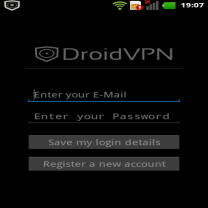
Most of us have already familiar with DroidVpn, as it is what we are using to surf the net with Mtn Bis now on the Android Mobile Phones. And almost every Android users are now enjoying it. I lately discovered that you don’t even need to root your Android device for those running Android 4.0 and above before you can use the DroidVpn. It works even without the tun.koinstaller.  It’s even faster on Un-rooted than the Rooted Android Devices, without any internet potholes.

How To Use DroidVPN On Unrooted Android Device
  1. Just visit Google play store and download DroidVPN if you haven’t done that yet
  2. Register an account at http://droidvpn.com/signup.php,  you will use the account you registered to sign into your DroidVPN app.
  3. Now open the DroidVPN and go to  Settings,  click on Connection Protocol and select UDP
  4. Use Port 500
  5. Make sure your Mtn Blackberry Plan is active with blackberry.net as your APN
  6. Connect and surf with the fastest speed ever!
Their is something special about this DroidVPN, it makes you browse unlimited. I experimented it with BISday Plan and I bet, I have already downloaded more than 8GB. The job of this VPN is to make your internet surfing unlimited if you are a premium user ooo. But it places  100MB embargo on free users.

You Might Also Like:

Feel free to Share/Like this post with your friends & You can also use this DroidVPN to give your PC and other device internet access from your Phone via "USB Tether", Bluetooth Tethering and Wifi hotspot. Which I have explained in one of my previous posts, So, Subscribe Now, if you don't want to miss any of my future posts.

Wednesday, July 24, 2013

How to Recharge & Transfer Fund Or Pay Your Bills From Your Phone With Quick Teller App

Life is more simple and easy day by day as a result of technology, there is no need to queue and wasting much time in the Banks before you can perform some transaction. It could be so frustrating going to the bank passing through some unnecessary protocol. At times, you will have to stay on queue for hours before it will get to your turn. But now, you can easily do anything you want to do with your bank right at the comfort of your home. This is simply bringing  banking closer  to your bedroom as you can buy and transfer fund right inside your living room.

The most annoying aspect about all this banking industry is that if you have some cash like #450 on top the average balance, they won’t allow you to withdraw it. But I bet you, with this new or existing development, you can use those change to buy airtime online.

Let me quickly introduce you to Quick Teller. Quick teller is own by interswitch company in charge of your Verve Atmcard. Initially, whenever I want to recharge online,  I normally use Umobile Application by UBA Bank on my Symbian phone  instead of walking down the street to get my airtime. But now, I can simply do that on my Blackberry & Android device too with the help of Quick Teller App.

Features of Quickteller
  1. Mobile Recharge: With quick teller app, you can recharge any amount online from all networks aside of rejected, buffeted and infected network like M-tel right from your phone
  2. Transfer money to another bank right from your phone (Mobile Money)
  3. Fund your mobile money wallet instantly
  4. Make Payments: You can pay for your Airline ticket book on hold, pay for hotel reservation etc
  5. You can pay for your Dstv Subscription, Irokotv, Mytv, Startimes Subscription and DAARSAT Communication right inside your kitchen with your Phone.
  6. You can even pay for your PHCN bill from your phone.
How To get started With QuickTeller
To get started with using quickteller and its features all you need to do is to visit www.quickteller.com. For Quickteller Nigeria visit www.quickteller.com.ng click on register at the sidebar and fill the form is very easy and free, if you have interswitch billsonline account, you can use the email and password for quickteller login and enjoy the full features of quickteller. To make things easy you can download quickteller app to your phone for easy and one button access.

Compatible Phones With Quick Teller Apps
It is available for Blackberry OS5 and above, Android 2.1 and above and IOS

How Can I Download Quick Teller App?
  • Android Users, visit Google play and search for Quickteller or download it here
  • Blackberry User, visit Blackberry App World and search for Quickteller or download it here
Once you are through downloading the app, run it on your device, enter your phone number and get your activation code via sms. 

Note: It only supports Verve ATM Card and Master card alone. After reading this info, it will be a SIN for you to go to the bank and queue, or allow those little change on your account balance to waste away with the bank when you can recharge with it.

You Might Also Like: 
Enjoying it and remember to share/like this post with your friends and families.
Never miss any of my future post CLICK HERE TO SUBSCRIBE Once entered, you will have to check your Inbox for a confirmation email containing a confirmation link. Once you VERIFY your email by clicking on the confirmation link in the message, you will never miss any future articles.

Friday, July 19, 2013

How To Use Mtn Blackberry Plans On Android Phones Using DroidVPN

Are you an Android user? Did you subscribe to the Mtn Blackberry Subscription & you notice that is no more working on your Android device? This post has made for you to continue enjoying your Mtn blackberry subscription on your Android device. Without much talk, just follow the below procedure to get it done.

How To Browse With Your Mtn Blackberry Subscription on Android
  1. Visit Google play store and download tun.koinstaller 
  2. Run the tun.ko and check the highlighted boxes then click install
  3. The tun.ko would connect to the internet to download the modules for your Android phone; meaning your phone must be connected to the internet before doing this.
 Once you are done with the above, complete the steps below.

Using DroidVPN
  1. Download DroidVPN App from Google play.
  2. Then register an account from their site at http://droidvpn.com/signup.php, you will use the account you registered to sign into your DroidVPN app.
  3. Now open the DroidVPN and click on Settings, click on Connection Protocol and select ICMP
  4. Make sure your Mtn blackberry plan is active with blackberry.net as the apn
  5. Open Droid VPN and Connect, It will give you two servers you can use for free.
  6.  Once it’s connected, minimize it and open your browser or any internet enabled app and connect.
NOTE: You can't use more than 100mb per day worth of data on DroidVPN because you are a free registered  user or better still upgrade to premium user so to use it unlimitedly...  And this only works for Rooted Androids. If your Android phone is not rooted, it won’t work for you.

You Might Also Like:  
Feel free to Share/Like this post with your friends & You can also use this DroidVPN to give your PC and other device internet access from your Phone via "USB Tether", Bluetooth Tethering and Wifi hotspot. Which I will explain in my future posts, So, Subscribe Now, if you don't want to miss the tips.

Wednesday, July 17, 2013

Download Top 5 Android Apps For The Month of Ramadan

The Holy Month of Ramadan is upon every Muslim living around the globe. This Holy Month of Ramadan brings blessings, patience, peacefulness, and devoutness. These days the technology has advanced so much that we can keep the record of everything with us at any time and anywhere. We can see our goals for the day on our Mobile Screen and complete them without any hustle. As we can stay connected to our friends and family on call and Messages, like this we can stay up to date with the things that we need to do in this Holy Month. We can use the same advanced technology to stay up to date with our Ramadan Goals.

To stay up to date with our Ramadan Goals, I have compiled some top Apps for Android users who can stay up to date with their Ramadan Goals easily. The Apps can be used all around the year and not are limited for Ramadan only. There are many Apps published in the App Store, making it difficult to decide which one to use and which one not to use. To save your time, I have sorted out a list of Most Downloaded and Popular Apps from the respective locations that will be helpful for you to use. The Apps are from the category of paid and Non-Paid Applications.

Top 5 Applications for Android Devices:

        1. Live Ramadan:

The App Live Ramadan teaches you the core concepts of Ramadan, the secrets of Islam, and its value for a Muslim. This App will help you more in learning Islam.
  You can download the App from here free.   

            2. Muslim Pro: Azan, Quran & Qibla:

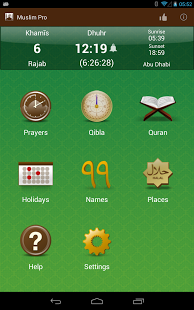
This app recognized by millions of Islam followers through the Muslim world as the most accurate Prayer time & Azan application on mobile devices. Muslim Pro also features the full Quran with Arabic scripts, phonetics, translations and audio recitations as well as a Qibla locator, an Islamic Hijri calendar, a map of halal restaurants and Mosques, etc..
The app can be download from here free.  

        3. iQuran:

This app allow user to read the Holy Quran in Arabic alongside its translation. Provides verse by verse audio playback, color coded Tajweed, repeat functions, unlimited bookmarks, search, excellent navigational controls, several translations and reciters and much more. NOTE: Permission to "read phone state" is only required in order to pause recitation in case the phone rings or in case you place a call while recitation is playing in the background.

You can download the App from here

         4. Salaah: Muslim Prayer:

This App allows one to learn about the right way of offering Prayer in such an appealing way that no one can hesitate to learn from this App. This App is also very useful for one who is willing to correct the way Salaah is performed.
This App is also very helpful for non-Muslims who are willing to know more about Salaah and what is prayed five times a day.
The App can be downloaded from here free.

             5. Muslim Kids Series: Dua

In this Ramadan, many emerging kids would be fasting. They should know about the basics of Fasting, Dua, and Wudu. This App is specially designed for Muslim children’s so that they can learn more about Dua and Wudu with the help of Audio and illustrations present in the App making it easier for their understanding.
The App can be downloaded from here free.

Above are some of the collections that we gathered from different places and compiled them at one place for the easiness of you. If you find the list of Apps useful, consider sharing with others so they can also get benefit from the list of Apps.
If you are a developer and got some great App for the Holy Month of Ramadan and want to share it with us, feel free to use our comment box to share the link and description but it might not be publish if the link is not relevant with the above topic.

Funsho Kolawole the Founder & the Author of www.shelaf.com is Wishing every Muslim a Happy Ramadan Kareem. 

My next post, will be Top Apps For iOS And BlackBerry For the Month of Ramadan and many other things you can do with your mobile phone. So, Subscribe Now, if you don't want to miss the tips.

Monday, July 15, 2013

3 Different Methods to Connect An Android Phones as Modem on Computer

Do you have an Android phone, and you want it to serve as a modem for your PC? Don’t worry; this post will explain how you can do it and your Android phone is cable of doing that. The only thing you can be worried about is whether your wireless network provider grants Android users the ability to tether their Android to use it as a modem.

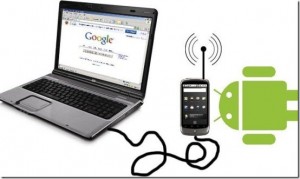
Today, I want to share the two simplest, easiest and tested methods to connect your laptop, Netbook, or Desktop Computer to the internet using your Android phone. The first method that will be analyze doesn’t require any third party application, it works via wireless. While the second method involves the installation of a third party application on your Android device and PC, and the connection would be done via a USB synchronize cable.

1. How to Access Internet on Your PC with Android Device Using Wireless

This is the simplest and easiest way to get connected to the internet on your PC using your modem. This method works by creating a wireless network on your Android device, so no USB Cable would be required.
  • On your Android Device, go to Settings >> Wireless and Network Settings >> Mobile networks, select the “Use Packet Data” option, and then unchecked “Use Only 2G Networks” option.
  • Again, go to Settings >> Wireless and Network Settings >>Tethering and Portable Hotspot, and then select the second option “Mobile AP”. After selecting the “Mobile AP”, a blue wifi icon should appear on your phone notification bar.
  •  Now go to your laptop, netbook, or desktop computer, or any other device you want to connect to your Android that supports WIFI, search for the available wireless networks, and select “Android AP” option.
  • That’s all; you are now connected to the internet, just go to your browsing and start browsing.
2. How to Access Internet on Your PC With Android Device Using USB Cable (USB Tethering)
  • Connect your Android Smartphone to the Laptop using the USB data cable.
  • Make sure the phone’s drivers are installed properly. In most cases, windows will automatically recognize and install the drivers automatically. If it does not, then use the CD which is given along with the cellphone.
  • In your android Smartphone, go to Settings >> Wireless and Network Settings >> Mobile Networks and select the “Use Packet Data” option. Also unchecked the “Use only 2G Networks” option.
  • Again go to Settings >> Wireless and Network Settings >> Tethering and Portable Hotspots
  • Select the “USB tethering” option and you should see a blue circle icon in the notification bar.
  • You are now connected to the internet. Just open a browser and start browsing.
3. How to Access Internet on Your PC with Android Device Using PdaNet Software
To connect your Laptop, Netbook, or Desktop Computer to the internet using Android is by using PdaNet. This app shares the internet on your Android with your computer. Using this method does not require any root access or hacking of firmware. To use PdaNet to connect your PC to the internet using your Android phone, you will need to install the app on your Android, and the PC version on your PC. A USB synchronize cable would also be required for the connection.
  • Download and Install the PdaNet+ on your Android phone (PdaNet+ is the latest version as at the time of this publication). Go to Android Market on your device and search for “pdanet” (without quotes “”) using the search function or click here to get the PdaNet+ software directly. 
  • Go to Settings >> Developer options and enable USB debugging mode
  • Download and Install the PDANet to your computer, for Windows and Mac
  • After download and installation, restart your computer. Once restart, PdaNet icon will appear on your PC tray. 
  • Now connect your Android Device using USB Cable
  • Open PdaNet on your Android and tap "Enable USB Tether" to enable your Android to act as the modem for your computer. 
  • Now click on PDANet icon on your computer and choose "Connect Internet". After this, the icon will blink for some seconds and then turn blue, which signifies successful connection. 
You can also send SMS from your phone using PDANet. Just click on PDANet Icon and select "start SMS agent". A new window will be opened. Choose contact and send SMS.

    Do you have another method aside from the methods explained here that works? If yes, don’t hesitate to share it with others via the comments below.

    Never miss any of my future post CLICK HERE TO SUBSCRIBE Once entered, you will have to check your Inbox for a confirmation email containing a confirmation link. Once you VERIFY your email by clicking on the confirmation link in the message, you will never miss any future articles.

    Saturday, July 13, 2013

    Android and iPhone Users Now Enjoying Pinging with LiveProfile

    It's a nice welcome development for the Android and iPhone Market. The android and iPhone Users can now Ping Just like the Blackberry Users, using an Application called "LiveProfile", With this Application you can exchange pins with your friends and family. Although this application has been in existence for a long time, it has now been improved and imbedded with BBM capabilities.

    You will be given a unique pin you can exchange with friends and family. LiveProfile offers a cheaper, faster and more reliable alternative to text messaging allowing users to communicate with lightning-fast message delivery and confidence, indicating when messages are delivered, read, and even when the recipient is typing a response, making it feel closer to a live conversation. And, where text messaging charges can quickly rack up, LiveProfile is free, even for international use.

    Features of LiveProfile

      1. Beautiful and easy to use interface
      2. Address book friend scans and invite
      3. Photo and Video sharing
      4. Emoticons
      5. Push notifications (no battery usage)
      6. Unique PINs
      7. Support for all major smart phones
      8. And more! 
        This application works well on Android, iPhone and BlackBerry. See what the application interface looks like below:

        How to Get LiveProfile Application
        • For Android user, go to the Android Market or Android Boutique (Google Store Play), Type or Search for "LiveProfile" and Hit the Install Button or click here to download LiveProfile Application directly.
        • For iPhone users, click here to download LiveProfile Application directly. 
        • For Blackberry users, click here to download LiveProfile Application directly but make sure you visit that url with your blackberry phone. 
        Download and Enjoy!

        Share your experience with this application via the comment box below and don't forget to share/like this post with your friends.

        Never miss any of my future post CLICK HERE TO SUBSCRIBE Once entered, you will have to check your Inbox for a confirmation email containing a confirmation link. Once you VERIFY your email by clicking on the confirmation link in the message, you will never miss any future articles.

        Wednesday, July 10, 2013

        How to Format/Reset Your Android Mobile Phone

        Android phone might be malfunctioning, and it may require you to clean up the phone memory by performing a hard factory reset/format on your Android device. Here is the tutorial that will show you how to quickly and easily do that in few steps.

        It is just in five easy steps, and It will be advisory to follow me carefully.

        How To Format/Reset Your Android Phone
        1.       Tap the Settings app on your device’s home screen. The Settings application can have varying icons depending upon on your specific device, and may also be found within the Application Tray or by pushing the phones dedicated Menu button

        2.       Depending on your device, the “Factory data reset” feature may be located in one of two sections within the settings application, Check “Back up my data” and “Automatic Restore"
        • Select the “Privacy” settings tab
        • Select the “SD & phone storage” settings tab if "Factory data reset" isn't located in "Privacy"
        3.       Check “Back up my data” and “Automatic Restore" then Proceed to "Factory Data Reset"

        4.       Tap “Reset Phone” to delete all data and restore back to your device’s factory settings.

        5.       Before it finally erase everything, you will get one more info displayed on your screen to confirm the reset. Just click  on the "Erase everything" button to begin the format. 

        Your device will then perform the factory reset and it will automatically reboot itself. When it finishes restarting, your Android device will be clean and as good as new. You can then begin setting it up and install the applications that you have missed from Google play, until you are satisfied. This is one of the shortest and easiest tutorial for Android users so far.

        Never miss any of my future post CLICK HERE TO SUBSCRIBE Once entered, you will have to check your Inbox for a confirmation email containing a confirmation link. Once you VERIFY your email by clicking on the confirmation link in the message, you will never miss any future articles.

        If you want to appreciate this, have Questions to ask or have anything to contribute, kindly use the comment form below. More so, Remember use the "Share", "Like" and other Share buttons to share this post with your friends.

        Tuesday, July 9, 2013

        Download PES 2013 V.1.05 apk + New Data & Enjoy It On Your Android Mobile Phone

        Who is not familiar with the PES, or more popularly known as Winning Eleven. PES is the next generation of Winning Eleven soccer game made ​​by Konami's famous first through the Playstation platform. And now PES is available for all platforms namely Nintendo, Wii, Xbox 360, and PC.

        PES was now venturing into the Smartphone, and is available in versions of iOS, Symbian, Android and Bada. Many other games, such as Real Football from Gameloft and EA FIFA, but PES still a football game too. And the latest version of this game is PES 2013.

        For Android, PES 2013 is not yet available in the Android Market, because this application is a paid and the Android Market has not provided the purchase paid applications for Indonesia. Alternatively, users can purchase through Android Market website via Google Checkout payments.
        Menu choices PES 2013 Smartphone version similar to that of the Playstation. You can play Quick Match or practice first by selecting the menu Training, In addition there is the option to play a full league to the Champions League. Option to play a club or national team of a country is also available as the Playstation version.

        Overall, the game is good and very recommended, according to the predicate as a paid application. Xi-Game little flaws observed in this game is a virtual joystick located some ketengah so sometimes disturbing vision while playing this game. And also the lack of Multiplayer features on the Android version to be a very unfortunate shortcomings. New Multiplayer Features for iOS and Bada versions where users can compete with friends via Wi-Fi or Bluetooth connection.

        Cristiano Ronaldo, of Real Madrid is featured on the font cover, see the screenshot below:

        Download Link:
        How to Install PES 2013 3D Android Games:
        1. Download the Apk + data file
        2. Install the apk file
        3. Extract the downloaded 'data', continue, move the folder 'data' "com.konami.pes2012" to Android/data.
        4. Play the game, and enjoy! 
        Never miss any of my future post CLICK HERE TO SUBSCRIBE Once entered, you will have to check your Inbox for a confirmation email containing a confirmation link. Once you VERIFY your email by clicking on the confirmation link in the message, you will never miss any future articles.

        If you want to appreciate this, have Questions to ask or have anything to contribute, kindly use the comment form below. More so, Remember use the "Share", "Like" and other Share buttons to share this post with your friends.

          Monday, July 8, 2013

          Download Top 50 Best Android Mobile Games

          Are you an Android User? Do you love games? On this page, you will find the best Android games to keep you entertained on your Android mobile device.
          These are the best Android games that will keep you entertained during your leisor hours as you solve puzzles, play arcade-style games, experience amazing simulation games, and so much more.


          Action Android Games
          fruitninja The Best Android GamesFruit Ninja Free
          Pick between three different modes. Slice fruit and create combos to get points!Download

          Crime City
          Fight and rob others, get jobs, and much more in this crime story.Download 

          best android gamesHeroes Call HD
          Explore 30 dungeons in this RPG.Download

          free android gamesMan vs Rocks
          Dodge the rocks in over 20 levels.Download

          Jetpack Soldier
          You’re not quite a fighter plane and not quite a soldier, you’re both!Download

          free android gamesPinball Deluxe
          Play pinball on your phone with 5 different tables.Download 

          free android app gamesCartoon Wars 2
          The next exciting defense game in the Cartoon Wars series.Download

          Monster Shooter: Lost Levels
          Shooting up monsters in this 2D action Android game couldn’t be any more addictive than this!Download

          free android app gamesCastle Master 3D
          You have an army of 300 followers against the castle defended by 300 strong.Download

          Robotek
          Battle against robots with lasers, microwaves and electricity.Download

          Death Worm
          Become the terrifying monster in this action-packed future world. $1.99Download

          Modern Combat 2
          Complete the mission you started in modern combat. One of the best Android games in the FPS genre. $6.99Download

          free android app gamesMeganoid
          Play in over 300 levels and 3 games modes, with pixel-art style. $2.63Download

          free android gamesSpirit HD
          Guide Spirit with your finger and defeat enemies! $2.99Download

          Tank Riders
          Attack enemies in this 3D tank battle Android game! $1.99Download

          Minecraft PE
          Now you can play Minecraft on the go. Create worlds, build, mine, and craft! $6.99Download

          tdkr The Best Android GamesThe Dark Knight Rises
          Play as Batman and protect Gotham city from Bane. $6.99Download 

          Racing Android Games 
          android gamesReal Racing 3
          One of the most realistic racing games yet, including Porsche, Lamborghini and more.Download 

          Road Trip
          Tilt your car so it can roll and jump, and do stunts to get nitro-boosts!Download 

          Hill Climb Racing
          This addictive driving game incorporates physics into a wild hill driving experience.Download 

           android gamesOffroad Legends
          Take your Monster Truck off-road and cause some real damage!Download

           android gamesMen In Black 3
          You are in charge of the MIB agency, can you keep humanity safe?Download 

          free android app gamesNeed For Speed: Hot Pursuit
          Take on the cops and outrun the law in this heart-pounding racing game. $4.99Download 

          Asphalt 7: Heat
          This next Asphalt series includes 60 top-end cars like Ferrari and Aston Martin. $0.99Download 

          Reckless Racing
          This Android game is for you if off-road dirt track racing is your thing. $1.99Download

           android gamesMini Motor Racing
          Race with mini cars against four of your friends! $1.99Download

           android gamesRiptide GP
          A unique water racing game that’ll make you feel like you’re getting soaked. $1.99Download

           android gamesRenaissance Blood
          Find Da Vinci’s blueprint by any means necessary. $3.99Download

          First Person Shooter 
          Dead Trigger
          In this First-person shooter, kill zombies in a post-apocalypse world.Download

          9MM
          Escape the gang and then turn the tables on those out to get you. $6.99Download

           Max Payne
          Play as Max Payne, an undercover cop framed for murder, in this action-shooter Android game. $2.99Download

          N.O.V.A. 3
          You are once again Kal in this epic sci-fi FPS adventure. $6.99Download

           Social Games
          Run in crowd
          Race with others, with a new world to run in every day!Download

          Scramble with Friends
          The best Android game for word-play puts a whole new twist on Scrabble, and you can play it with your friends! $0.99Download

           Dice With Buddies
          If you like Yahtzee, you’ll absolutely love this addictive dice game that you can play with friends. $1.99Download

          Adventure Games

           Mystery of the Crystal Portal
          Embark on an epic mystery adventure to find Nicole’s missing father.Download

          Wind Up Knight
          Save the princess from the Black Knight by leading the Wind-up knight through 50 levels of this 3D game.Download

          Pirates of the Caribbean
          Build a crew, battle, and go on quests all in this Android game.Download

          Tupsu-The Furry Little Monster
          Take your furry monster across floating islands to collect the stars that he craves.Download

          Canabalt HD
          Wearing your 3-piece suit, run as far as you can over the rooftops in this apocalyptic action game. $2.99Download

          Dragon & Dracula
          As baby dragon, you must embark on an epic journey to survive. $0.99Download

          Quiet, Please!
          Solve puzzles in this retro adventure to keep things quiet. $0.99
          Download


           Puzzles & Logic Android Games
          Flow Free
          Match like colors and solve this colorful puzzle Android game with hundreds of brain-bending levels.Download

          Unblock Me
          Slide blocks around to get the red block off the board. It sounds a lot easier than it actually is!Download

          100 Floors
          Solve a puzzle to advance to the next floor. Solve all 100 puzzles to win!Download

          Move the Box
          Move, drop, and swap boxes to get three in a row. Clear the dock quickly!Download

          Jewels Star
          In this match 3 game, get each star from each level to win.Download
           
          Quell
          Solve over 80 puzzles.Download

          Bag It!
          A fast-paced game where you must stack and bag food as fast as you can. $1.99Download 

          World of Goo
          You’ve never explored a gooey world like this before. $4.99Download 

          Things are beginning to change for games on Android. As such, I’ve listed out a bunch of great games available. Some are free and some cost a couple bucks, but all provide a good time. There are thousands of Android games. If you think I missed a particularly awesome one let me know. Until then, enjoy my picks for the best Android games.

          You Might also have interest on: How to Download Paid Android Games & Applications For Free

          Hope this information helps?
          If you download & enjoying them, don't forget to comment here and remember to Click Share/Like buttons for the benefit of others and to appreciate our effort.

          If you enjoyed this post and wish to be informed whenever a new post is published, then make sure you Subscribe to our regular Email Updates!